Showing posts with label Windows Service Programming. Show all posts

Thursday, February 21, 2019

How to install a .Net based Windows Service using InstallUtil.exe, see its status, start/stop it


How to Install a Windows Service Using InstallUtil and command prompt from Naeem Akram on Vimeo.


A demo day be really frustrating or it can be the happiest day of an IT professional's life.
Now I'm going to demonstrate the stuff which we've created so far in this course

You may join my course with special discount using the link given below.

https://www.udemy.com/tcpip-socket-programming-for-coders-using-csharp-net/?couponCode=HALF


The windows service solution is already open
I'll go and click build and build solution
Now I'm going to expand solution explorer
And click the button , "Show all Files"
Next I'm going to expand the "bin" folder
 then I'll right click the "debug" folder and select "open folder
 location"
 Take a brief look at the contents of this folder
The file Udemy Windows Service dot exe is going to run as our service.
For this purpose, we're going to use installutil.exe
It is shipped along with Microsoft .Net framework.
For this purpose I'm going to launch the developer command prompt
I'll click the Windows Button and type "Developer command prompt"
The developer command prompt for vs is showing on top
I'll right click this shortcut and select menu option "Run as
administrator"
Now I'm going to type the command installutil.exe space -i space
And then the path of the file which we want to install as a service.
I'll go back to the debug folder and shift right click the Udemy
Windows Service .exe file
I'll select the context menu option "Copy as path"
Now I'll go back to the command prompt windows
I'll right click it and select context menu option edit
And then select Paste

The full command is installtuil.exe pace minus i space path of
our windows service exe file
I will hit enter key on command prmopt

The system shows that the commit phase completed successfuly

Let us see if the service is showing up service control managter
or not
I'll open the SCM by pressing Windows R and typing services.msc
Inside the name column, I'll look for Udemy Demo Service
We can click inside the name column and press Udemy
You can see our very own Windows Service named "Udemy Windows Service"
 along with the descritpion
"My hello world servoce" right here
And it has got logon as "Local System"
You'll see that status of the service will change to "Running"
The actions button on top right will also change from start to stop
 and restart
I'm now going to click the stop link and that should stop the service
without any fuss
You see a progress bar popup
And the service status is changed to stopped.
That is it for this video
In the next one we'll take a look at the event log


Wednesday, February 6, 2019

Difference between a Windows Service Solution and a Console Application By Example


Windows Services are the engine that most people never see, these are entirely different beasts. Common differences between Windows Services & Console/Windows/Web applications shown in this image. Learn Windows Service Programming with C# in my Udemy course, here's 50% off discount.

Learn Windows Service Programming on Udemy Message Box

There are some major differences between a Windows Service executable and simple exe files. This difference is also present in Visual Studio Solution. 
Learn Windows Service Programming in C# .Net by enrolling in my Udemy course now, here's a discount coupon code. 


Let’s open a console application project in Visual Studio.
First of all I will press ‘Control + F5’
You will see the console application starts working right away
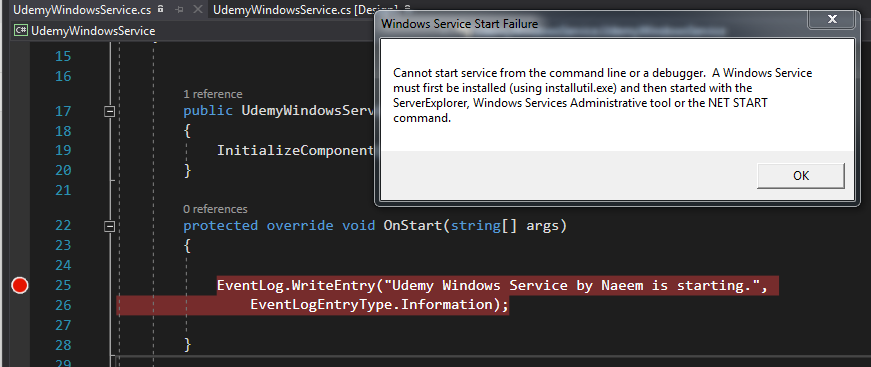
Now let’s go to a Windows Service project and try the same, when I press F5 the exe does not start to run.


Let me explain a couple short things first.

OnStart method of a windows service is being shown on the screen

Learn Windows Service Programming on Udemy Message Box


The OnStart method of the service is called by Windows when a user clicks “Start” link on the Service Control Manager
In our demo code, we are writing some text to the debugging console in this method
Let me press ‘Control+F5’ keyboard shortcut once again
Learn Windows Service Programming on Udemy Message Box
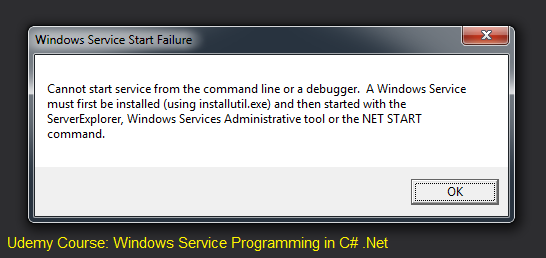
Boom! a message box says you can’t run a Windows Service from debugger baby.

This is the first difference

You can't just hit Ctrl+F5 to run a Windows Service Solution. 


Now let’s head back to the console application project
Inside the main method, I will place a breakpoint on a Console.WriteLine which prints Hello World!

And I will click ‘Debug’ menu and select the menu item ‘Start Debugging’
You see, the breakpoint is hit instantly

I’ll press F5 so that the application continues execution
Let’s try to do the same with the Windows Service project
I will place a on Debugger dot writeline
Go to ‘Debug’ menu and click ‘Start Debugging’

The same error shows up again

Learn Windows Service Programming on Udemy Message Box


This is difference number two


Finally, let us go to the output directory of our console application(any console application)

Double click HelloWorld.exe file
You see, the application starts working right away
Let’s go to the output directory of the service project and try to run it by double clicking the .exe file in a similar fashion
Oops! It won’t start dancing to your tunes
This is the third difference

We need to install the a Windows Service before we can run it

You will learn how to install a Windows Service in next section of my course. Please sign up here. 


MPORTANT: The source code for section 1 can be downloaded from my Windows Service Course .

Saturday, October 28, 2017

Windows Service Statuses and Login Types


Learn Windows Service programming for only $10 in this Udemy course: 

Windows Services Statuses

A Windows Service can have following statuses:
  1. Stopped
  2. Started
  3. Paused
  4. Pending Start
  5. Pending Stop
  6. Pending Pause


Windows Service Startup Types

A Windows Service can have multiple Startup Types which are given below. 
  1. Manual
  2. Automatic
  3. Disabled
  4. Automatic(Delayed Start)


It tells whether a service is started automatically by Windows or it is stopped, it is possible to disable a service as well and in that case, this service status column will contain the word “Disabled”. 
Learn Windows Service programming for only $10 in this Udemy course: 

Windows Service Login Account

If we see on Service Control Manager there's another column “Log On As”. This column shows the username of the Windows account a particular service is going to use. Possible values of this field are:
  1. Local System
  2. Network Service
  3. Local Service
  4. Specific User


More information can be found on the link mentioned in the description of this lecture. https://msdn.microsoft.com/en-us/library/system.serviceprocess.serviceaccount(v=vs.110).aspx
Having a specific set of credentials to log in makes it possible for Windows Services to start before a user logs-in and stays operational even when a human user is gone.
Among these types of login credentials, LocalService is the one with the fewest powers. It’s a non-privileged user on the local machine.
LocalSystem, on the other hand, is the most powerful type of user and it can do almost anything you want the machine.
Third type NetworkService is slightly more powerful than LocalService, and it can interact with various network services. Details are not relevant from the perspective of this course so I would prefer not to stress too much on the definition.

Performing operations on Windows Service

We can perform various service operations by clicking on a service entry in SCM and going to the Action menu.
It is also possible to right-click a Windows service in SCM (Service Control Manager) and select ‘Properties’ from the drop-down.
The properties dialog not only allows you to start/stop/pause/resume a service, it also shows you the file path from where a specific service is running.
Learn Windows Service programming for only $10 in this Udemy course: