Saturday, January 11, 2020

Software testing and automated testing tools


Software testing is a quality control activity. It is considered to be a repetitive and labor-intensive task.
Computers in general are you know capable of doing such repetitive, boring, and labor-intensive tasks really well.
Appium WinAppDriver: Automated UI Testing Windows Apps in C#
Learn more about automated testing of Windows applications by clicking the link below.
https://www.udemy.com/course/appium-winappdriver-automation-testing/?referralCode=ED22C3A4CE5BB5E22E53

This leads us to software test automation and automated testing tools.
Software Test Automation tools help us to delegate laborious;  repetitive tasks to the computers, because that’s what computers do best.
Making the machines do the software testing job frees up time for Homosepians!, allowing them to be creative; something the machines can’t do well. At least at the time when this course was being created.
Automated software tests can be broadly broken into two categories.

  • Automated white box testing, such as 
    • Unit tests
    • Integration tests
    • API tests(Postman is a popular API testing tool)
  • Automated black box testing which includes
    • Automated UI testing(Robot Process Automation, RPA is a relevant field)

Test automation can be divided in two major phases…

First is “Creating scripts intended to exercise various parts of the software system under test and assert the results shown by the System Under Test or SUT.”

The second is “Running the test scripts to exercise the system and display the results.”
Any programming language can be used to write these scripts. For example, we will use C# .Net and Java.
Once the test scripts are in place, proper tools are also available to run the scripts.
Tests are commonly executed by test run agents.
For Visual Studio Unit Testing Framework, these are called agents. For UIPath, these are called robots.


In general, when we run test scripts, they either pass or fail based on the response of the system under test.

We can see these reports to assess the correctness of the system in a “quantitative fashion.”
UI Path Orchestrator
A developer can run these tests on one machine or on many machines using test control systems like Microsoft TFS or UiPath Orchestrator.

Jenkins is another such tool popular in the Java community.
Several types of automated testing tools are available in the market
These tools facilitate the process of writing and running test scripts
These tools also commonly include utility software to record user actions and prepare test scripts based on those actions
Some popular test automation (and RPA) tools are

Selenium and rarely used Selenium Recorder.
Appium for iOS and Android automated testing
UiPath
Appium-based WinAppDriver for testing Windows applications
I hope you found this video to be useful. Please like it and share it with your QA friends.
Do subscribe to my channel as well.

Monday, December 30, 2019

Discount on Udemy Courses!


Appium WinAppDriver: Automated UI Testing Windows Apps in C# 


Windows Service Programming, Debugging, Installing in C#.Net

UDP Socket Programming For Distributed Computing in C#.Net (hightest rated course)

https://www.udemy.com/course/udpsocketprogramming/?couponCode=BESTJULY2020

TCP/IP Socket Programming in C# .Net For Coders & Students (best selling course)

These coupons will stay alive only for five days, created as a new year's gift for everyone out there. Enroll in any of my C# .Net Udemy courses for as little as $9.99.
Hurry up, the discount will run out soon.


Hi, 

I hope you’re doing great. All of my courses are now available at the discount price of $9.99 each. Its a limited time offer, please click the links below enrol now. 

Appium WinAppDriver UI Automation Testing Windows Apps in C#(only dedicated course about WinAppDriver on Udemy in a post-CodedUI world)
TCP/IP Socket Programming in C# .Net For Coders & Students(best seller)
UDP Socket Programming For Distributed Computing in C#.Net(highly rated)
Windows Service Programming, Debugging, Installing in C#.Net

Best regards,

Naeem Malik.


Friday, October 11, 2019

What is software testing, software test automation, and functional software testing


Software test automation in Appium WinAppDriver and C# .Net

Software testing is the process of using an application according to a test plan to find defects in the application under test.

Automated testing is the discipline that uses various tools to make the machines perform software testing for us with little to no human intervention.

Automated functional testing is one of many types of automated testing.

Functional Testing:
Functional testing is performed through the user interface of an application
A tester performs various operations on the application under test according to certain test cases.
The test cases can be categorized concerning their scope.

Smoke Testing:
Smoke tests are the set of test cases that ensures the application’s basic functionality is intact.
The term originates in the electronics industry, where an appliance is turned on after manufacturing just to ensure it does not burn or give smoke.

Regression Testing: 
Another important classification of test cases is called regression tests,
Regression tests ensure that functionality that was working in the past has not stopped after some application changes.

When to run smoke tests and regression tests?

Smoke tests and regression tests are commonly executed on production systems after changes like

  1. Hardware updates
  2. Firewall (or load balancer)updates
  3. Operating System updates 
  4. General software updates


Common causes of automation testing
The aforementioned reasons mean the testers must perform smoke and regression tests repeatedly after application or system updates.
It is a boring and labor-intensive task. The agony is amplified when the testers have to take screenshots for auditing purposes.
Many such system updates are done during the holidays; the testers have to come and do all testing over the holidays, which adds injury to the insult.

These causes make functional testing a prime candidate for test automation.
For example, my current job(an insurance company) has forty business-critical applications. In the past, about 20 people had to come to the office for testing when a patch was deployed.
But now, all of the work is automated, and only one or two persons come and run all the scripts.

Automated functional testing is performed using various test automation tools
The most powerful way to automate testing is by writing code to perform repeating tasks on the application UI for you.

These scripts also make sure that the application under test is showing the correct expected results
Popular test automation tools also produce test pass/fail reports to give an overview of system health.
Once these scripts are in place, it is possible to configure them with various continuous integration systems such that they can execute the scripts with little or no human intervention
The point to be noted here is that applications under development are unsuitable for automated functional testing.
When an application is under development, it is optimal for testing with other types of automation such as unit testing and integration testing.
A large number of business-critical Windows applications are already deployed across the enterprise world right now
To keep the core business running, these applications must be tested after every system or application update by manual testers.

These applications are the prime candidates for functional test automation
In this course, I will show you how to create test scripts for testing various types of Windows applications such as Win32, WinForms, WPF, and UWP using Microsoft’s next-generation test automation technologies WinAppDriver.

I've launched a course about Automated UI Testing using WinAppDriver with C# .Net; here's a best price discount coupon that will last only 5 days.
https://www.udemy.com/course/appium-winappdriver-automation-testing/?couponCode=0B4AAB139DEA09114D95

After the discount has expired, you may get the course here:
https://www.udemy.com/course/appium-winappdriver-automation-testing/?referralCode=ED22C3A4CE5BB5E22E53

Sunday, August 18, 2019

Software testing and it's relationship with automated testing tools

Software testing is a quality control activity
It is considered to be a repetitive and labor intensive task
Computers in general are you know capable of doing such repetitive, boring, and labor intensive tasks really well.

This is where the test automation tools(Selenium, Appium, WinAppDriver)  come into play.
Test automation tools help us to delegate the labour intensive;  repetitive software testing tasks to the computers, because that’s what the machines do the best.
Making the cyborgs do the boring software testing job frees up time for  Homosepians!, allowing them to be creative; something the machines can’t do well. At least at the time when this course was being created.

Test automation can be divided in two major sections…

  1. “Creating scripts intended to exercise various parts of the software system under test and assert the results shown by the System Under Test or SUT.”
  2. “Running the test scripts to actually exercise the system and display the results.”


Any programming language can be used to write these scripts including but not limited to C# .Net, Java, or Python.

Once the test automation scripts are in place, proper tools are available to run the scripts as well. The job of a test automation engineer doesn't end once the scripts are written. Test engineers are needed maintain the tests in case the application under test is changed.

In general; when we run test scripts they either pass or fail based on the response of system under test. The tests might fail if the test scripts have a bug. Such things can raise a false flag that you've found a defect.

Reports generated by a test run are a work product of automated testing. We can see these reports to assess the correctness of the system in a “quantitative fashion”

Several types of automated testing tools are available in the market

These tools facilitate the process of writing and running test scripts
These tools also commonly include utility software to record user actions and prepare test scripts based on those actions
I will provide you the essential knowledge of the tools related to WinAppDriver and Visual Studio for testing Windows applications and the basic concepts to get you started in the right direction.
The reason for sticking with the basics is that a single course won’t be sufficient to cover all available types of automated testing tools

Monday, July 29, 2019

How to download and run WinAppDriver UI Recorder


Appium WinAppDriver: Automated UI Testing Windows Apps in C#


WinAppDriver UI Recorder is Microsoft's lightweight UI element/object inspector/spy. It is a free product.

Looking for a WinAppDriver tutorial? Check my course on Udemy. It is better than WinAppDriver documentation!

https://www.udemy.com/course/appium-winappdriver-automation-testing/?referralCode=ED22C3A4CE5BB5E22E53

WAD UIR(Windows Application Driver UI Recorder) is a part of the WinAppDriver(Windows Application Driver) project, but it can function independently without the WinAppDriver. I find it more accurate, useful, and a better choice than the traditional Windows UI inspector.

WinAppDriver UI Recorder is also known as WAD UIRecorder. After WinAppDriver UI Recorder download, you can use it to identify various UI elements of Windows applications. 

This tutorial will show you how to download and run WinAppDriver UI Recorder with screenshots.

Pre-requisites of Windows Application Driver (WAD) UI Recorder

You don't need to install the WAD UI Recorder. Just download a small zip package, unzip it, and start using it through the .exe file.

You might copy the WinAppDriver UI Recorder folder from one machine to another to run it. You can simply go for WinAppDriver UI Recorder download and use it. 

The WinAppDriverUIRecorder runs only on Windows 10.

You don't need to have Windows 10 Developer Mode turned on to run the WinAppDriver UI Recorder or object spy. This makes it very suitable for day-to-day object inspection on all sorts of  Windows application UI Automation needs on Windows PCs, for test automation or otherwise.

How to download WinAppDriver UI Recorder

Here's the direct download link:

Got to the WinAppDriver GitHub repository by following this link: https://github.com/Microsoft/WinAppDriver

Click on the + {number} release link. 

  1.  
Various versions of WinAppDriver UI Recorder are available for download on this page. Please note that WinAppDriver download items are also available on the same page. 
  1. Right now, I am using "WinAppDriver UI Recorder v1.0 RC". The WinAppDriver UI Recorder version 1.1 RC  has a bug(apparently), and it didn't work on the two machines where I downloaded it. 
  2. WinAppDriver for Windows 10 and windows 11 can be done from the same page.
  3. Click on the "Assets" arrow underneath the release. 
  4. A set of file links will be present on the page, as shown in the screenshot below. 

  5. Click on the link titled "WinAppDriverUIRecorder.zip". 
  6. Unzip the zip file and go inside the newly created "WinAppDriverUIRecorder" folder when the zip file is finished downloading. 
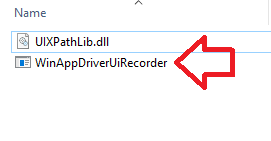
  7. This folder will contain only two files, a file named "WinAppDriverUiRecorder.exe" and another named "UIXPathLib.dll."
  8. To find UI control properties and inspect objects, run the exe file named WinAppDriverUiRecorder.exe file. It is an object spy. 
  9. The file is shown in the screenshot below. There is no specific icon for WinAppDriver UI Recorder file. Although I suppose there has to be one. It deserves to have an icon for itself. 
  10. Double-click the "WinAppDriverUiRecordre.exe" icon to launch it. 
  11. Once launched, the WinAppDriver UI Recorder window will be shown on the screen. A screenshot is given below, FYI. This can be a very helpful tool for automated functional testing because it lets you easily inspect UI objects on a Windows PC and see important information about UI controls. 
  12. Once the UI Recorder is open, it will automatically highlight the UI element under the mouse cursor and show the properties of the highlighted control. 
  13. You might use these properties in UI automation or automated functional testing of Windows applications, especially the enterprise PC applications, which are still widely used inside offices. 
  14. As a sample, I've opened the Windows Calculator application and the WAD UI Recorder side by side. You can see that the number 9 key is highlighted in the calculator, and various properties of these UI elements are shown in the WindowsAppDriver UI Recorder screen. 
You can now use WinAppDriver for windows application automation with confidence. Here is the WinAppDriver tutorial for you(link). 
Please note that WAD UI Recorder provides a full XPath of Windows controls. This makes automated test script writing very easy.

I hope you found this article to be helpful. Please share it on your social media if you think it is useful. 
WinAppDriver for windows application test automation is the best choice. 
You must be careful that the UI element control properties found by the WADUIR are often more helpful. If you find control properties using inspect.exe, they might not be valid with a WAD script. 
If you're looking forward to WinAppDriver Java test automation, you can utilize the examples in the documentation section.