Sunday, May 3, 2020

vstest.console.exe commandline options for test automation, help dump


Microsoft (R) Test Execution Command Line Tool Version 16.4.0
Copyright (c) Microsoft Corporation.  All rights reserved.

Usage: vstest.console.exe [Arguments] [Options] [[--] <RunSettings arguments>...]]

Description: Runs tests from the specified files.

Arguments:

[TestFileNames]
      Run tests from the specified files or wild card pattern. Separate multiple test file names or pattern
      by spaces. Set console logger verbosity to detailed to view matched test files.
      Examples: mytestproject.dll
                mytestproject.dll myothertestproject.exe
                testproject*.dll my*project.dll

Options:

--Tests|/Tests:<Test Names>
      Run tests with names that match the provided values. To provide multiple
      values, separate them by commas.
      Examples: /Tests:TestMethod1
                /Tests:TestMethod1,testMethod2

--TestCaseFilter|/TestCaseFilter:<Expression>
      Run tests that match the given expression.
      <Expression> is of the format <property>Operator<value>[|&<Expression>]
         where Operator is one of =, != or ~  (Operator ~ has 'contains'
         semantics and is applicable for string properties like DisplayName).
         Parenthesis () can be used to group sub-expressions.
      Examples: /TestCaseFilter:"Priority=1"
                /TestCaseFilter:"(FullyQualifiedName~Nightly
                                  |Name=MyTestMethod)"

--Framework|/Framework:<Framework Version>
      Target .Net Framework version to be used for test execution.
      Valid values are ".NETFramework,Version=v4.5.1", ".NETCoreApp,Version=v1.0" etc.
      Other supported values are Framework40, Framework45, FrameworkCore10 and FrameworkUap10.

--Platform|/Platform:<Platform type>
      Target platform architecture to be used for test execution.
      Valid values are x86, x64 and ARM.

--Settings|/Settings:<Settings File>
      Settings to use when running tests.

RunSettings arguments:
      Arguments to pass runsettings configurations through commandline. Arguments may be specified as name-value pair of the form [name]=[value] after "-- ". Note the space after --.
      Use a space to separate multiple [name]=[value].
      More info on RunSettings arguments support: https://aka.ms/vstest-runsettings-arguments

-lt|--ListTests|/lt|/ListTests:<File Name>
      Lists all discovered tests from the given test container.

--Parallel|/Parallel
      Specifies that the tests be executed in parallel. By default up
      to all available cores on the machine may be used.
      The number of cores to use may be configured using a settings file.

--TestAdapterPath|/TestAdapterPath
      This makes vstest.console.exe process use custom test adapters
      from a given path (if any) in the test run.
      Example  /TestAdapterPath:<pathToCustomAdapters>

--Blame|/Blame:[CollectDump];[CollectAlways]=[Value];[DumpType]=[Value]
      Runs the test in blame mode. This option is helpful in isolating the problematic test causing test host crash.
      It creates an output file in the current directory as "Sequence.xml",
      that captures the order of execution of test before the crash.
      You may optionally choose to collect process dump for the test host.
      When you choose to collect dump, by default, a mini dump will be collected on a crash.
      You may also choose to override this default behaviour by some optional parameters:
      CollectAlways - To collect dump on exit even if there is no crash (true/false)
      DumpType - To specify dump type (mini/full).
      Example: /Blame
               /Blame:CollectDump
               /Blame:CollectDump;CollectAlways=true;DumpType=full

--Diag|/Diag:<Path to log file>
      Enable logs for test platform.
      Logs are written to the provided file.

      Change the trace level for logs as shown below
      Example: /Diag:<Path to log file>;tracelevel=<Defaults to "verbose">
      Allowed values for tracelevel: off, error, warning, info and verbose.

--logger|/logger:<Logger Uri/FriendlyName>
      Specify a logger for test results. For example, to log results into a
      Visual Studio Test Results File (TRX) use /logger:trx[;LogFileName=<Defaults to unique file name>]
      Creates file in TestResults directory with given LogFileName.

      Change the verbosity level in log messages for console logger as shown below
      Example: /logger:console;verbosity=<Defaults to "normal">
      Allowed values for verbosity: quiet, minimal, normal and detailed.

      Change the diagnostic level prefix for console logger as shown below
      Example: /logger:console;prefix=<Defaults to "false">
      More info on Console Logger here : https://aka.ms/console-logger

--ResultsDirectory|/ResultsDirectory
      Test results directory will be created in specified path if not exists.
      Example  /ResultsDirectory:<pathToResultsDirectory>

--ParentProcessId|/ParentProcessId:<ParentProcessId>
      Process Id of the Parent Process responsible for launching current process.

--Port|/Port:<Port>
      The Port for socket connection and receiving the event messages.

-?|--Help|/?|/Help
      Display this usage message.

--Collect|/Collect:<DataCollector FriendlyName>
      Enables data collector for the test run. More info here : https://aka.ms/vstest-collect

--InIsolation|/InIsolation
      Runs the tests in an isolated process. This makes vstest.console.exe
      process less likely to be stopped on an error in the tests, but tests
      may run slower.

@<file>
      Read response file for more options.

  To run tests:
    >vstest.console.exe tests.dll
  To run tests with additional settings such as  data collectors:
    >vstest.console.exe  tests.dll /Settings:Local.RunSettings


Saturday, May 2, 2020

How to generate test run reports for C#, CodedUI, Appium, Selenium test automation

C# .Net Windows Applications Test Explorer Window Visual Studio Coded UI Appium WinAppDriver Selenium Automated Testing
Sharing a screenshot of a passed test works, in some cases.

Generating test run reports has become very easy with Playwright, check it here. 
If you've worked on test automation in C# and Visual Studio, you might be perplexed about why no reports are generated after the test run?
Maybe there was something you could send to your manager as an e-mail attachment so that s/he could sleep in peace.
Sending a screenshot of Visual Studio with Test Explorer showing it's all green after a test execution works in some cases.
Before you proceed further, please note that all of this information and much more about test automation with WinAppDriver can be learned through my course. You can sign up now with a discount by clicking the link below:
Learn automated UI testing using WinAppDriver and C#


But some managers are suspicious that maybe you came up with these results using with debugging tools. Maybe you'd been jumping around code with Ctrl + Shift + F10.
Even if you don't have a manager doubting your work, it is still a good idea to be able to run your automated testing scripts without the Visual Studio or outside the Visual Studio, without the Test Explorer window.
Generate automated test run reports:
Yet another advantage of such stand alone test automation execution is that you can produce a [automation] test run report. This report is generated in .trx format. I'm going to show you how to just that in this article.

How to run test automation from command prompt?
Please note that this is useful for both Appium WinAppDriver, Selenium, and Coded UI tests. In general, any test automation script, be it written using MsTest or Visual Studio Unit Testing Framework can be run using Visual Studio Developer Command Prompt.
For this I'll click the Windows button and type Developer Command Prompt.
VS Developer Command Prompt for running test automation and generate test report
Windows: Developer Command Prompt Search

This is how Visual Studio 2019 developer command prompt looks like.

Visual Studio 2019 Developer Command Prompt Example Demo


Once the command prompt is open, change the directory to the path where the dll files of your test automation project are placed. You will use the CD dos command for this purpose. For example:
C:\Users\Naeem\source\repos\WinFormsUITesting\WinFormsUITesting\bin\Debug


Once you're inside the directory, type the following command

vstest.console.exe

Give a space and then put the name of the test dll file. In my case, it is WinFormsUITesting.dll.
 put another space and then specify /logger:trx. Overall, the command will look as below:

vstest.console.exe WinFromsUITesting.Dll /logger:trx

After typing the command, hit the enter key. Notice that you don't need to place double quotes around the test assembly name.

If you want to see list of all options exposed by vstest.console.exe, just type it without any parameters. A detailed help will be shown on console.

The details of all information about vstest.console.exe can be seen here.

vstest.console.exe help


Once the automation is finished running, the path of the generated .trx file is shown on the command line as displayed in the screenshot below.


A .trx file can be opened with any version of Visual Studio, be it community edition. It shows the results of a test run.


If you have Visual Studio installed and you double click the .trx file, it will open in Visual Studio and show test results in rows of red and green tests. A screenshot of test results in Visual Studio 2019 is displayed below FYI:

If you double click any row in the test results, more details related to that specific test method will be shown up top. A screenshot is given below FYI. 


Just a reminder, all of this information and much more about test automation with WinAppDriver can be learned through my course. You can sign up now with a discount by clicking the link below:
Learn automated UI testing using WinAppDriver and C#


Friday, May 1, 2020

What Is Automated UI Testing? How Can My WinAppDriver Online Course Teach You Automated Testing w/ Appium Easily?


Udemy Course: Playwright TypeScript Automation Testing
In the following article, you will get a thorough insight into why you should start learning UI testing from Udemy right now!

There are few WinAppDriver tutorials available and almost no online courses. That is why I created a course about WinAppDriver. This course is in C#, but you can also use concepts shown with Java. I will split up the article into the following subheadings to make it easier for you to skim through:


  • Introduction
  • What is UI testing?
  • Where can I learn Automated UI testing?
  • Why take the Udemy course? Is It pocket friendly?
  • Features of “Appium WinAppDriver UI Automation Testing Windows Apps in C#”
  • Why taking this course during lockdown time is the best?
  • User Reviews of this Course 
  • Best ways to get exposure to automated UI Testing

Introduction 

UI or User Interface is the front end of your application that your users interact with on their screens. It is used in both Desktop and web applications.

While User Interface (UI) Testing is a procedure used to test if the application is working accurately. UI testing can be performed physically by a human tester, or it tends to be performed automatically using a software program. Automatic UI testing is the atomization of manual test tasks.

UI is a broad concept that can include both GUI and Command Line Interfaces (CLIs).


What is UI Testing?

Anything the user is going to do, might do, or can do, or regularly more significantly can do, however, you shouldn't have the option to do with your application while it is running, is a piece of the UI. 

From each click of a button to entering data. You need to test what is expected to work and what is required to fail. 

Here are a couple of model scenarios of areas to test what happens when the client: 

•         Adds another column to a matrix and enters all the fields accurately. Does it save the information? 
•         Clicks the Done button before all the fields are entered. Does it permit them to proceed? 
•         Clicks cancel; when all the information is entered, does it dispose of the considerable amount of information? 
•         Enters in an end date that is before a beginning date? 

All of the logic your developer adds to make a point to ascertain values effectively, add data, change data, explore your application, and so on ought to be tested. So how would you do it? Automated UI Testing, indeed.


Where Can I Learn Automated UI Testing?

Quite a few platforms provide authentic courses for you to master this particular area of expertise. There is a need for desktop application test automation and web application test automation. 
Below are some blogs, websites, and youtube channels that are a must-watch to learn automated testing.
Based on my experience, I have listed all the essential blogs, websites, and Youtube channels that are a must-watch to learn automation testing.
•         Free Training Tutorials -Guru 99 - Basics of Testing and Automation
•         Naveen AutomationLabs

Of all these worthy places to head to, my favorite is Udemy! And why is that so? I will explain that in the following section.
But it is hard to come by a good WinAppDriver tutorial because only a few people chose to write about it.

Why Take Udemy Course For Windows Desktop Automated UI Testing? Is It Cheap?


Since people do adore things that are offered at low cost with excellent quality. Udemy is centered mainly around students, and as clearly, Students, by and large, can't manage the cost of Costly course material in this manner; most of the Udemy courses are pretty priced. 
Udemy even offers free courses that are close to the paid courses.

The content quality is the thing that makes it one of the most famous Online Learning platforms. 

One more thing with Udemy Course producers is they turn out Coupons, which decrease the cost for their specific course. Some even pay 100% off coupons for their top-notch courses worth several dollars. 

This causes them to get more users to reach and connect with, which also advantages the students.


Automated Testing with WinAppDriver in C#


The course contains 59 lectures. For now, you will be able to learn the following:
  • Automated Testing & UI Automation with Appium, WinAppDriver in C# .Net on Windows 10.
  • Desktop automation for RPA and functional testing of Windows/WinForms applications with Appium WinAppDriver in C# .Net, Visual Studio.
  • Windows Automation in Appium and WinAppDriver.
Based on student feedback, the author keeps adding more videos and source code samples to the course.
Two new sections have been added already.

The course content is enlisted below:
  • Introduction to UI Automation of Windows Applications with Appium WinAppDriver.
  • Finding and Manipulating UI Elements with [Appium] WinAppDriver for Automation.
  • Using Automation Framework Visual Studio Unit Test Framework(MS Test).
  • Fusion: Combining [Appium] WinAppDriver plus MS Test Framework.
  • Data-Driven Testing with Ms. Test and Microsoft Excel.
  • WinForms Automated Testing with Appium WinAppDriver.
  • Appium WinAppDriver Test Automation General Scenarios.
  • Running Automated Tests Without Visual Studio, Generating Reports, and Test Filters from the command line (or Azure DevOps Pipelines). 

Why Learning Automation in Lockdown is The Best Decision?

Utilizing time in this period of worldwide lockdown in putting resources into self-awareness and learning pertinent new aptitudes can assist individuals with keeping up their certainty and inspiration, says Namrata Murlidhar, showcasing chief at LinkedIn Learning. 

While influenced individuals will along these lines have all the more available time on their hands, activities are likewise restricted to the bounds of your home because of broad lockdown measures during the pandemic. 

Jo Cresswell, professions master at occupations site Glassdoor, said that the expanding number of laborers being furloughed "sparkles a focus on the significance of transferable abilities." 
“Keeping yourself stimulated and finding new ways to learn essential skills can make the eventual return to work smoother or open doors to new opportunities in the future, ” said Murlidhar, urging furloughed individuals to also stick to a routine as much as possible.


User Reviews For “Appium WinAppDriver UI Automation Testing Windows Apps in C#”

People who took advantage of learning this course from Udemy left 5-star rated reviews to thank the creator of this course.

If someone is looking for Appium C# desktop application automation with Appium WinAppDriver, this is the only course on Udemy to kick start with.
A screenshot of user reviews is given below. 
Appium WinAppDriver Udemy Course Reviews
Appium WinAppDriver Automated Testing Course Review

Appium WinAppDriver UI Test Automation in C# Course Reviews
Appium WinAppDriver Automated Testing Course review

I hope this article has motivated you enough to learn from this worthy course.

And if there is still some possibility of a no, then head over to Udemy official site for this course and watch for your own. How important this course is to be learned at this hour of worldwide lockdown/QUARANTINE.

Chaio! J


Friday, April 17, 2020

Appium Windows Automation: Options for running WinAppDriver.exe


Udemy Course: Playwright TypeScript Automation Testing 
The screenshot above shows installation folder of Windows Application Driver (WinAppDriver/WAD). WinAppDriver is a free to use UI automation technology by Microsoft, it is based on Appium and WebDriver standard.

To learn more about WinAppDriver, please visit the following course link:

https://www.udemy.com/course/appium-winappdriver-automation-testing/?referralCode=ED22C3A4CE5BB5E22E53

You need to know what's the importance of WinAppDriver.exe in UI automation based on [Appium] WinAppDriver.

Open file explorer and type path of WinAppDriver installation folder here.
Default installation path of WinAppDriver the path “C:\Program Files (x86)\Windows Application Driver”.
Inside the installation folder, you can see WinAppDriver.exe file alongside other binaries.
The WinAppDriver.exe is the heart of UI automation on the [Appium] WinAppDriver platform.

To perform UI automation with WinAppDriver, the WinAppDriver.exe file must be running on the target machine.

If you double click to start it[WinAppDriver.exe], you'll see it’s a console application.
Before proceeding further, let me repeat again, your WinAppDriver based UI automation will fail if the file WinAppDriver.exe is not running.


The WinAppDriver default port 4723. WinAppDriver is listening for incoming automation commands using http protocol.

It is listening for Appium automation commands on port number 4723.

Your script(C#, Java, JavaScript, Python, Ruby) tells the WinAppdriver what automation operation it wants to be performed and automation on the machine is performed by this WinAppDriver.exe.
The test automation script and the driver can be either on the same machine or on different machines.

Your scripts will fail if the WinAppDriver is not reachable through the port number which you specify in your script.

Windows Firewall can cause serious pain in this regard sometimes.

If let’s suppose the port number is already in use by another program, you can specify it through the command line.

For example, if we open the command prompt.

Next, type the full path of WinAppDriver here and press enter.

i.e.
C:\Program Files (x86)\Windows Application Driver\WinAppDriver.exe 21000

Here, I can simply type a different port number after the space, as a command line parameter.

Please note that the port number must be greater than 1024 and less than 65335.

You can type 21000 and hit Enter key.


The server will start running on this port now.

It’s better to let the WinAppDriver run on the default port, 4723.

You may create a shortcut to the WinAppDriver.exe on your desktop as well.

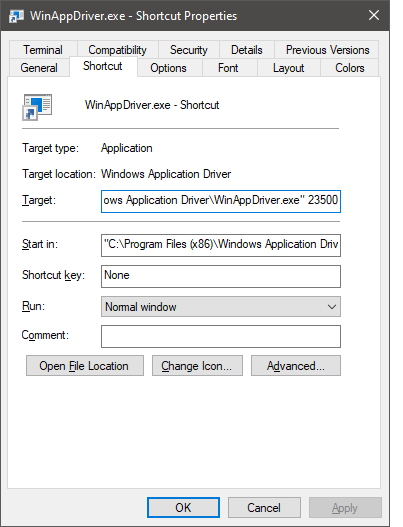
It is also possible to specify a different port number in the "target" field of a shortcut which you've created. 


Saturday, March 7, 2020

How to Change WinAppDriver Port Number?


The WinAppDriver, popularly known as Windows Application Driver is a UI automation engine that listens for incoming requests on port number 4782 by default.

Appium WinAppDriver UI Automation Testing Windows Apps in C#


You can see what port the WinAppDriver is listening to at any given moment when it is running; the port number is shown on the console.

WinAppDriver default port

But other than that, if you want to run the WinAppDriver on a different port number than the default, you can specify the port number in the command line arguments.
An example will be:

WinAppDriver.exe 28399

A screenshot is given below FYI.

Windows Application Driver (WAD) WinAppDriver.Exe Port Number Parameter cmd
WinAppDriver.exe port number in command line

How to specify a different port number in the shortcut?

If you've created a shortcut to WinAppDriver.exe on your desktop, you can easily go and add the port number after the exe file path in the Target field.
An example screenshot is given below to show how to set a different Windows Application Driver (WAD) port number for the desktop shortcut:


Windows Application Driver (WAD) WinAppDriver.Exe Port Number Parameter in desktop shortcut
WinAppDriver Shortcut Port Number Change
Suppose you're using Azure DevOps and want to run the WinAppDriver on your self-hosted agent or Azure VM but with a different port number. You can specify this in the pipeline task parameters. The screenshot of the setting of the Azure DevOps pipeline WinAppDriver task is shown below. as an example

WinAppDriver Azure DevOps Pipeline Task Settings Command line arguments to change port number in UI Automation Testing
WinAppDriver Azure DevOps Pipeline Task Settings